





TL;DR
A WordPress website redesign is a planned overhaul of a site’s structure, design, content, and technical setup while the site stays on WordPress. Most businesses start one because the current site converts poorly, looks dated, works badly on phones, or loads slowly. The work follows a fixed order: record baseline metrics, audit the existing site, plan the new structure and URL mapping, design and build on a staging copy, test, launch, and measure. Cost depends mainly on page count, custom features, and how much content needs rewriting. On indicative agency pricing, a 10 to 25 page business site usually falls between USD 4,000 and 12,000, while WooCommerce stores and integration-heavy sites cost more. Search rankings survive a redesign when every changed URL gets a 301 redirect, valuable content is kept, and indexing settings are checked on launch day. Aalpha Information Systems runs WordPress redesigns on this audit-first process, with URL mapping, redirect planning, and post-launch monitoring built into every project. The result should be judged against numbers recorded before anything changed.
1. What is a WordPress website redesign?
A WordPress website redesign changes how a site looks, how it is organised, and how well it performs, while the site stays on WordPress. It usually covers the theme, page templates, navigation, content, and conversion paths. The domain, the most valuable content, and the site’s search history are kept, which is what separates a redesign from starting over.
WordPress redesign versus refresh, rebuild, and migration
These four terms get used interchangeably in quotes and briefs, and the confusion causes scope disputes later. The difference lies in how much of the site changes and how much risk the change carries.
Refresh. A refresh updates colours, fonts, images, and some copy while the structure and URLs stay the same. It is usually triggered by a brand update or a dated look, carries low SEO risk, and takes around 2 to 4 weeks.
Redesign. A redesign changes the design, templates, navigation, content, and often some URLs, while the site stays on WordPress. Businesses usually start one because of low conversions, poor mobile use, or a new offering. SEO risk is medium, and most projects take 6 to 16 weeks.
Rebuild. A rebuild rewrites the theme and codebase from scratch, often with a new architecture. It makes sense when the existing code is unmaintainable or carries heavy technical debt. SEO risk is medium to high, and timelines run from 10 to 24 weeks.
Migration. A migration changes the platform, host, or domain, with or without design changes. Typical triggers are moving to or from WordPress or switching domains. It carries the highest SEO risk, and the timeline depends on site size.
These timelines assume a business site of 15 to 60 pages with a responsive client team. A redesign can include a partial rebuild, such as replacing an old theme, without becoming a full rebuild project.
What can change during a redesign?
Almost anything visible, and much of what sits underneath. The visual layer covers layout, typography, colour, imagery, and page templates. The structural layer covers the sitemap, navigation, URL patterns, and internal linking. Content can be rewritten, merged, or removed. On the technical side, a redesign often replaces the theme, trims the plugin list, reworks forms, and fixes performance problems.
What usually stays is the domain, WordPress itself, the content that already ranks and converts, and any URLs with strong backlinks. Changing those is possible, but each one adds migration risk and should be a deliberate decision with a reason attached.
Signs your WordPress website needs a redesign
A redesign is justified when the problems are structural rather than cosmetic. These are the patterns that usually point that way.
Conversions are falling while traffic holds. Visitors still arrive but stop enquiring or buying, which usually means the page layout, messaging, or calls to action no longer match what people want.
The site is hard to use on a phone. If mobile visitors leave faster than desktop visitors on the same pages, the layout was probably built desktop first and adapted afterwards.
Your team cannot edit pages without a developer. A theme that breaks when someone adds a paragraph costs money on every small update.
The theme or core plugins are no longer supported. An abandoned theme cannot keep pace with WordPress core and PHP updates, and every update becomes a gamble.
The business has changed and the site has not. New services, a new audience, or a new market often need a new structure, and bolting pages onto the old menu rarely works.
Pages load slowly and fail Core Web Vitals. When the slowness comes from a heavy theme or page builder, caching plugins can only hide part of it.
When a smaller update is enough
A full redesign is the wrong answer if one or two isolated problems explain most of the trouble. A slow site with a clean structure may only need image compression, caching, and a better host. A single weak landing page can be rewritten and tested on its own. An outdated look with good conversion numbers may only need a visual refresh.
Before committing budget, check whether the problems cluster. If they appear across templates, navigation, and code, a redesign makes sense. If they sit on a handful of pages, fix those pages first and measure. The downside of the smaller route is that it can postpone a redesign that is already overdue, so set a date to review the results.
2. Set goals for your WordPress redesign
Redesign goals should name the problem being fixed, the audience being served, and the number that will prove it worked. Write them down before any design work starts. A goal such as “raise enquiry form submissions from 1.2% to 2% of sessions within three months of launch” gives the team something to design toward and a way to judge the result.
-
Identify the problems with your current website
List the problems in plain language, and attach evidence to each one. “The site feels old” is an opinion. “Mobile visitors on service pages leave within 10 seconds at twice the desktop rate” is a problem you can design against. Ask your sales team what prospects complain about, check support emails for repeated confusion, and look at which pages have high exits in analytics.
Separate the problems into three groups: those caused by design, those caused by content, and those caused by technology. The split matters because each group needs different people and a different part of the budget.
-
Define your target audience and its needs
Describe the two or three visitor types who matter most to revenue, and what each one needs to do on the site. A manufacturing company might have procurement managers checking specifications, engineers comparing products, and job applicants. Each group arrives with a different question and looks for different proof.
Use real sources for this: sales call notes, search queries from Google Search Console, and conversations with existing customers. Assumptions made in a workshop tend to describe the company’s view of itself rather than what buyers actually look for.
-
Set business and conversion goals
Tie each goal to a business result and a measurable action on the site. Typical examples include more qualified enquiries, higher online sales, fewer support calls, or more job applications. Then define the conversion that tracks each one, such as a form submission, a completed checkout, a quote request, or a booked call.
Keep the list short. A redesign that tries to serve eight equal goals ends up with a homepage that serves none of them well. Rank the goals so designers know which one wins when two compete for the same space.
-
Record baseline metrics before making changes
Without baseline figures, nobody can say whether the redesign worked. Export at least three months of data before the project starts, and twelve months if your business is seasonal.
From Google Analytics 4, record sessions and users by channel, which show whether traffic sources shift after launch, along with the conversion rate for each key action, which is the main test of whether the redesign succeeded. From Google Search Console, export organic clicks, impressions, and top queries so that ranking losses caused by URL or content changes can be spotted quickly. Use both tools to list your top landing pages by traffic and conversions, since these are the pages that must be protected.
Record Core Web Vitals from PageSpeed Insights and the Search Console experience reports to measure loading and responsiveness improvements later. Finally, pull lead or sales volume and value from your CRM or WooCommerce reports, which connects site changes to revenue.
Also take a full crawl of the current site and save it. That crawl becomes your URL inventory and your redirect checklist later.
-
Define project scope, responsibilities, and approvals
Scope creep is the most common reason redesigns run late. Write down which pages, templates, features, and integrations are included, and just as clearly, what is excluded. Assign a single decision-maker on the client side, because feedback from five stakeholders with equal authority stalls every approval.
Agree on approval points in advance: sitemap, wireframes, visual design, content, and final pre-launch review. Set a response time for each, such as five working days. A missed approval deadline should move the launch date, and everyone should know that from the start.
3. Audit your existing WordPress website
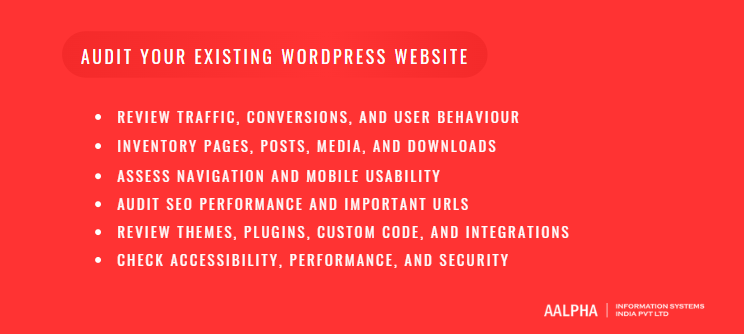
A site audit records what the current site contains, how it performs, and what it depends on. It covers traffic and conversions, content, navigation, SEO value, themes and plugins, integrations, accessibility, speed, and security. The audit decides what the redesign must protect, what it should fix, and what it can safely discard.
-
Review traffic, conversions, and user behaviour
Start with the pages that bring in visitors and the pages that turn them into leads or sales. These are rarely the same list. A blog post may bring in most organic traffic while a single pricing page closes most deals.
Look at the paths people take before converting, where they leave, and how behaviour differs between mobile and desktop. Heatmap and session recording tools such as Microsoft Clarity or Hotjar show where people click, how far they scroll, and where they hesitate. Watch 20 or 30 recordings of real sessions on your main pages. Patterns appear quickly, and they are often different from what the team expected.
-
Inventory pages, posts, media, and downloads
Build a spreadsheet of every URL on the site. Include pages, posts, custom post types, category and tag archives, PDFs, and any media files that are linked from elsewhere. A crawler such as Screaming Frog finds most of these, and the WordPress admin plus your XML sitemap fill the gaps.
For each URL, record traffic, conversions, backlinks, word count, last update date, and owner. This inventory drives the keep, update, combine, or remove decisions during planning, and it doubles as the redirect checklist later. Sites that skip this step usually discover their lost pages through a drop in rankings a month after launch.
-
Assess navigation and mobile usability
Test whether visitors can find the pages that matter. Give three people who do not know your business a task, such as “find the price of the enterprise plan” or “request a quote for product X”, and watch them try it on a phone. Note where they hesitate and where they tap the wrong item.
Check the menu for labels that use internal jargon, menus with more than seven top-level items, and important pages that sit three or more clicks deep. On mobile, look for tap targets that are too small, text that needs zooming, and forms that are painful to fill in on a phone keyboard.
-
Audit SEO performance and important URLs
Identify which URLs carry search value. In Google Search Console, export pages by clicks and impressions for the last 12 months. From a backlink tool, export pages with the most referring domains. Any URL that appears in either list goes on a protected list.
Record the current titles, meta descriptions, H1s, canonical tags, and structured data for protected pages. Note any existing redirects too. Old redirect rules are easy to lose when a site moves to a new theme or host, and losing them breaks links that were working for years.
-
Review themes, plugins, custom code, and integrations
List every active plugin with its purpose, last update date, and whether anyone still uses it. Most WordPress sites that have been running for five years or more carry several plugins that duplicate each other or support features nobody uses.
Check the theme for custom code in functions.php, custom templates, and edits made directly to parent theme files, which get lost on update. Document every integration: CRM, email marketing, payment gateways, booking systems, ERP connections, and analytics. For each one, note how data moves and who owns the account. Integrations are where redesign timelines most often slip, because they are discovered late.
-
Check accessibility, performance, and security
Run an automated accessibility check with a tool such as WAVE or axe, then test manually with a keyboard only. Automated tools catch missing alt text and low contrast. They miss problems such as focus order and menus that cannot be opened without a mouse. Use the Web Content Accessibility Guidelines (WCAG) 2.2 at level AA as the target.
For performance, run PageSpeed Insights on your top templates, not only the homepage. For security, check WordPress core, PHP, theme, and plugin versions, admin user accounts, and the backup setup. Findings here often change the redesign approach. A site running an outdated PHP version with an abandoned theme may need more rebuild work than originally planned.
4. Plan your new site structure and content
Structure and content planning turns the audit into a blueprint. It produces a sitemap built around what visitors need to do, a navigation and linking plan, a decision for every existing page, a URL map from old addresses to new ones, and a content plan with owners and deadlines. Design work should start only after the sitemap is approved.
-
Create a sitemap based on user journeys
Start from the tasks your main visitor types need to complete, not from your org chart. If procurement managers need specifications and certifications, those should be reachable in one or two clicks from the homepage, not buried under “About us”.
Draw the sitemap as a hierarchy of page types: homepage, service or product hub pages, individual service or product pages, case studies, resources, company pages, and contact. Group pages by what visitors are trying to do. Validate the draft by walking through each main journey from entry page to conversion and counting the clicks.
-
Plan navigation and internal linking
Keep the main menu to the pages most visitors need, and use clear, plain labels. “Services” beats “Solutions” if you sell services. “Pricing” beats “Plans and packages”. The footer can carry secondary links such as careers, policies, and less-visited resources.
Internal links do two jobs: they guide visitors to the next logical page, and they tell search engines which pages matter. Plan links from high-traffic blog posts to related service pages, from service pages to case studies, and between related services. Descriptive anchor text such as “WooCommerce development” helps both readers and search engines more than “click here”.
-
Decide which pages to keep, update, combine, or remove
Use the inventory from your audit to give every URL one of four decisions.
Keep. Pages that perform well and have current content stay as they are, and their URLs stay the same wherever possible.
Update. Pages that have traffic or backlinks but thin or dated content keep their URL and get rewritten.
Combine. When several pages cover the same topic and compete with each other in search, merge them into one stronger page and redirect the others to it.
Remove. Pages with no traffic, no backlinks, and no business purpose can go. Redirect each one to the closest relevant page, or return a 410 status if nothing fits.
Be cautious with removals. A page with little traffic may still hold backlinks or answer a question your sales team sends to prospects. Check with the people who use the site day to day before deleting anything.
-
Map old URLs to new URLs
Every URL that changes needs a documented destination. Build the map in the same spreadsheet as your inventory, with one row per old URL, and columns for the new URL, the redirect type, and the reason for the change.
A few typical entries show how this works. An old address such as /our-services/web-design/ might move to /services/web-design/ with a 301 redirect because the URL structure changed. A dated blog URL such as /blog/2019/03/wordpress-tips/ might become /blog/wordpress-tips/ once dates are removed from post URLs. Two overlapping pages such as /seo-services/ and /seo-audit/ might both redirect to a single combined /services/seo/ page, and a retired campaign page such as /old-promo-2021/ might point to the current /offers/ page.
Avoid changing URLs purely for tidiness. Each change adds a redirect, a small risk of lost ranking signals, and one more thing to test. Keep the URL when the old one is readable and still accurate.
-
Plan new copy, images, and calls to action
Write a content brief for every page that needs new or updated copy. Each brief should state the page’s audience, its main question, the conversion it supports, the target search query if any, and the proof it needs, such as case studies, client logos, or certifications.
Plan original images where possible. Stock photography of people shaking hands tells visitors nothing. Product photos, team photos, screenshots, and diagrams do more work. Place calls to action where a visitor would naturally be ready to act, usually after the proof rather than above it.
-
Set a content review and approval process
Late content is the single most common cause of delayed launches. Assign each page to a named writer and a named approver, with deadlines tied to the build schedule. Pages should be written in a shared document, reviewed there, and entered into WordPress only after approval.
Limit review rounds to two per page. A third round usually means the brief was unclear, and the fix is to revisit the brief rather than keep editing the copy. Legal or compliance review, if needed, should have its own slot in the schedule instead of being squeezed into the final week.
5. Choose the right WordPress redesign approach
The technical approach decides how easy the site will be to edit, how fast it will load, and how much it will cost to maintain a website. The main choices are whether to keep or replace the theme, which type of theme to use, whether a page builder is worth its overhead, and which plugins to keep. All of this work should happen on a staging copy.
-
Update your current theme or choose a new one?
Keeping the current theme makes sense when it is actively maintained, performs well, and the problems are mainly layout and content. It is cheaper, and editors already know it.
A new theme is the better choice when the current one is abandoned, loads slowly, depends on outdated libraries, or has been modified so heavily that updates break it. The downside is content rework. Shortcodes and theme-specific layouts from the old theme often stop working and must be rebuilt page by page. Budget for that work before choosing.
-
Block themes, classic themes, and custom themes
WordPress now supports two theme systems, and the choice affects how editors work for years afterwards.
Block themes. Templates, headers, and footers are built with blocks in the Site Editor and styled through theme.json. They suit new builds where editors want control over layouts. The downside is that some older plugins and workflows still assume a classic theme.
Classic themes. These use PHP templates along with the Customizer and widget areas. They suit sites that rely on plugins or custom code built for the classic model. The downside is that layout changes usually need a developer.
Custom themes. A custom theme is built specifically for your site, using either the block or classic approach. It suits sites with specific design, performance, or integration needs. The downside is a higher upfront cost and a dependence on the developer’s code quality.
For most new business sites, a custom block theme is our preferred route. Editors get reusable patterns they can safely rearrange, and the theme carries no code for features the site never uses. The WordPress theme developer handbook documents both systems if your team wants the technical detail.
-
When does a page builder make sense?
A page builder such as Elementor or Divi makes sense when non-technical staff need to build varied landing pages often and cannot wait for a developer. Marketing teams running frequent campaigns get real value from that freedom.
The cost is weight and lock-in. Page builders add CSS and JavaScript to every page, which makes Core Web Vitals harder to pass. Content built in a page builder is also tied to it, and moving away later means rebuilding those pages. For sites where most pages follow a few standard layouts, the native block editor with custom block patterns gives editors enough control without that overhead.
-
Decide which plugins and features to retain
Go through the plugin list from the audit and put each plugin into one of three groups: keep, replace, or remove. Keep plugins that are maintained, needed, and not duplicated. Replace plugins that are abandoned or overlap with others. Remove plugins for features nobody uses.
Fewer plugins means fewer updates, fewer conflicts, and a smaller attack surface. There is no correct number, but every plugin should have a reason to exist that someone on the team can state. For features that the new theme or WordPress core now handles, such as XML sitemaps or basic block layouts, the plugin can usually go.
-
Set up backups and a staging environment
Take a full backup of the live site, including files and database, before any work begins, and store it off the server. Test that the backup restores correctly. A backup that has never been restored is a hope, not a backup.
Build the redesign on a staging site: a private copy of the site on a separate URL, blocked from search engines and protected by a password. Most managed WordPress hosts provide staging with one click. Keep the live site running normally until launch, and plan how content added to the live site during the project will be carried over.
6. Redesign the user experience and visual identity
UX and visual design turn the sitemap into pages people can use. The work starts with the main visitor journeys, moves to wireframes for each page type, then to mobile layouts, a visual system of type, colour, and reusable components, and finally to forms and calls to action. Accessibility belongs in each of these steps, not in a final check.
-
Map the most important visitor journeys
Take the two or three journeys that produce most revenue and map each one step by step. For a B2B services firm, one journey might run from a Google search, to a service page, to a case study, to the contact form. For an online store, it might run from a category page, to a product page, to the cart, to checkout.
At each step, write what the visitor needs to know to move forward, and what might stop them. That list becomes the content and design requirements for each page. It also shows where the current site loses people, which is where design effort pays back first.
-
Create wireframes for key page types
Wireframes are simple layouts without colour or final copy. They show what goes on each page and in what order. Create them for each distinct page type, such as the homepage, a service page, a product page, a case study, a blog post, and the contact page, rather than for every individual page.
Review wireframes with real content, or at least realistic content. Lorem ipsum hides problems. A service page wireframe that looks balanced with two lines of placeholder text often breaks when the real description runs to four paragraphs.
-
Design mobile navigation and layouts
Design the mobile version of each page type first, or at least alongside desktop. On a phone, visitors see one column, one section at a time, and the order of sections matters more than on a wide screen.
Keep the mobile menu short and put the main call to action where a thumb can reach it. Use a sticky header only if it stays small. Test phone numbers so they open the dialler, and make forms use the right keyboard types, such as the number pad for phone fields. These details are cheap to get right in design and expensive to fix after launch.
-
Define typography, colours, imagery, and reusable components
Build a small design system rather than designing every page separately. Define a type scale with sizes for headings and body text, a colour palette with approved combinations, button styles, spacing rules, and an image style.
Then design reusable components: hero sections, feature grids, testimonial blocks, pricing tables, case study cards, and call-to-action bands. In a block theme, these become block patterns and theme.json settings that editors reuse. The site stays consistent after launch, and new pages can be built from approved parts instead of from scratch.
-
Improve forms and calls to action
Every field in a form costs some completions. Ask only for what your sales or support team uses in the first conversation. Name, email, company, and a message are enough for most enquiry forms. Put qualification questions later in the sales process, or make them optional.
Write call-to-action buttons that say what happens next, such as “Get a quote within 24 hours” or “Book a 30-minute call”, rather than “Submit”. Show a clear confirmation message after submission and send an automatic email reply. For high-value forms, consider a two-step design where the first step asks one simple question. Test it against the single-step version rather than assuming it works better.
-
Include accessibility in design decisions
Accessibility choices are cheapest at the design stage. Check colour contrast for text and buttons against WCAG AA ratios, which means at least 4.5 to 1 for normal body text. Design visible focus states for keyboard users. Never rely on colour alone to show an error or a required field.
Use real text instead of text inside images, keep link text descriptive, and give form fields visible labels rather than placeholder text that disappears when typing starts. Accessible design also helps people on small screens, in bright sunlight, or with temporary injuries, so the benefit extends well beyond users of assistive technology.
7. Protect SEO during the redesign
SEO protection during a redesign comes down to keeping what search engines already value and telling them clearly about anything that moves. That means preserving pages that rank, carrying over metadata, redirecting every changed URL with a 301, checking canonical and indexing settings, and updating internal links and sitemaps. Search performance then needs close monitoring for several weeks after launch.
-
Preserve valuable pages and content
Pages on the protected list from your SEO audit should keep their URL, their main topic, and the substance of their content. You can improve the design, tighten the copy, and add new sections. Removing the paragraphs that answer the query a page ranks for is how redesigns lose traffic.
When rewriting a ranking page, compare the new version against the queries it ranks for in Search Console. If the old page ranked for “WordPress maintenance cost” and the new page no longer mentions cost, expect that ranking to fall.
-
Review titles, headings, metadata, and image text
Carry over title tags and meta descriptions for protected pages unless you have a clear reason to change them. When you do change them, keep the main search term. Make sure every page has a single H1 that describes its topic, since new designs sometimes place the site logo or a slogan in an H1 by mistake.
Check that image alt text survived the move to the new theme, and add it where it was missing. Carry over structured data such as Organization, Product, FAQPage, or Article markup, and validate it with Google’s Rich Results Test before launch.
-
Plan redirects for changed URLs
Every URL that changes gets a 301 redirect to its closest equivalent, based on your URL map. Redirect page to page. Pointing large numbers of old URLs at the homepage looks like a missing page to Google, and those URLs lose their value.
Avoid chains, where A redirects to B and B redirects to C. Update old redirects so they point straight to the final URL. Server-level redirects in .htaccess or Nginx configuration are faster than plugin redirects, but a plugin such as Redirection is easier for non-developers to manage. Either works if the rules are tested. Google’s guidance on site moves with URL changes covers the process in detail.
-
Check canonical URLs and indexing settings
Staging sites are hidden from search engines, and that hiding often travels to the live site by accident. On launch day, go to Settings, then Reading, in WordPress and confirm that “Discourage search engines from indexing this site” is unchecked. Check robots.txt for any Disallow rule copied from staging.
Confirm that each page’s canonical tag points to its own live URL, not to the staging domain or an old address. Check that noindex tags only appear on pages that should stay out of search, such as thank-you pages, internal search results, or cart and checkout pages.
-
Update internal links and XML sitemaps
After launch, internal links should point directly to final URLs, not through redirects. Run a search and replace on the database for old URL patterns and for the staging domain, using a tool that handles serialised data correctly, such as WP-CLI’s search-replace command.
Make sure the XML sitemap lists only live, indexable URLs. WordPress core generates one at /wp-sitemap.xml, and SEO plugins such as Yoast or Rank Math replace it with their own. Submit the sitemap in Google Search Console and Bing Webmaster Tools on launch day.
-
Monitor search performance after launch
Check Google Search Console daily for the first two weeks, then weekly for three months. Watch the Pages report for new “Not found (404)” and “Page with redirect” entries, and compare clicks and impressions for your protected pages against the baseline.
Some fluctuation in the first few weeks is normal while Google recrawls the site. A steady decline on specific pages after a month points to a real problem, usually a missing redirect, removed content, or an indexing setting. Fix those quickly, because rankings recover faster when the cause is corrected early.
8. Build and optimise the redesigned website
The build phase turns approved designs into working templates, moves content into them, and connects forms, ecommerce, and business tools. It also covers performance tuning to pass Core Web Vitals and a security setup covering backups, updates, and user permissions. All of this happens on staging, with the live site untouched until launch.
-
Build templates and reusable page sections
Build the page types from your wireframes as templates, and the components from your design system as reusable blocks or patterns. Editors should be able to create a new service page by choosing a template and filling in content, without adjusting spacing or fonts.
Lock what should not change, such as header and footer structure, and leave editable what should, such as text, images, and the order of sections. In a block theme, template locking and synced patterns handle this without extra plugins. Document the available patterns in a short guide for editors, with a screenshot of each one.
-
Migrate and format content
Moving content is slower than most teams expect. Old posts often contain shortcodes from a previous theme or plugin, inline styles, and oversized images. Each of these needs cleaning or converting so it displays correctly in the new design.
For large sites, script the migration. WP-CLI, WP All Import, or a custom migration script can convert old shortcodes into blocks and set categories, authors, and featured images in bulk. For smaller sites, manual migration is often quicker and catches formatting problems a script would miss. Either way, check a sample of migrated pages against the originals before signing off.
-
Configure forms, search, and ecommerce features
Rebuild forms with proper validation, spam protection, and routing to the right inbox or CRM. Gravity Forms, WPForms, and Fluent Forms all handle this well. Test that each form sends to the correct person, since form routing is often configured once, years ago, and never documented.
If the site uses WooCommerce, check products, variations, tax rules, shipping zones, coupons, and payment gateways on staging using sandbox payment accounts. Configure site search so it covers the content types people actually search for. Default WordPress search is basic, and larger sites often benefit from a plugin such as SearchWP or Relevanssi.
-
Connect analytics, CRM, email, and other tools
Reinstall analytics tracking, preferably through Google Tag Manager so changes do not need code edits. Recreate every conversion event from the baseline, using the same event names so before and after figures can be compared.
Reconnect CRM, email marketing, chat, booking, and ERP integrations, and send test data through each one. Check that leads arrive with all fields mapped correctly, including source and campaign data. A form that submits successfully but drops the UTM parameters on the way into the CRM looks fine on the website and quietly breaks marketing reporting.
-
Improve loading speed and Core Web Vitals
Google’s Core Web Vitals set three targets, measured at the 75th percentile of real visits. Largest Contentful Paint should be 2.5 seconds or less. Interaction to Next Paint should be 200 milliseconds or less. Cumulative Layout Shift should be 0.1 or less.
Most WordPress speed problems have familiar causes. Uncompressed images, too many plugins loading scripts on every page, render-blocking CSS and JavaScript, and slow hosting account for most failures. Serve images in WebP or AVIF with correct dimensions, load scripts only on pages that need them, use page caching and a CDN, and choose hosting with current PHP versions and server-level caching. Test each template, not just the homepage, since product pages and blog posts often perform worse.
-
Configure security, backups, and user permissions
Set up automatic daily backups stored off the server, with at least 30 days of history. Enable automatic minor updates for WordPress core, and plan a weekly or monthly routine for plugin and theme updates, tested on staging first for larger sites.
Review user accounts and remove anyone who no longer needs access. Give each person the lowest role that lets them do their job: editors do not need administrator rights. Enforce strong passwords and two-factor authentication for administrators, limit login attempts, and keep a firewall active at host or plugin level. Use HTTPS everywhere and confirm there are no mixed-content warnings.
9. Test and launch your WordPress website
Testing checks that the new site works on real devices, that every form, button, and integration does what it should, that redirects resolve, and that content is accurate. Launch follows a written checklist with a rollback plan, at a quiet time for your traffic, and is followed by a set of post-launch checks in the first hours and days.
-
Test across devices and browsers
Test on real phones as well as browser emulators. At a minimum, cover recent versions of Chrome, Safari, Firefox, and Edge on desktop, plus Safari on iPhone and Chrome on Android. Use your analytics data to add any browser or device that makes up a meaningful share of your visitors.
Test at common screen widths, including tablets and small laptops, where layouts often break in ways that neither the phone nor the wide desktop design reveals. Check menus, sliders, tabs, accordions, and anything else that moves or opens.
-
Check forms, buttons, checkout, and integrations
Submit every form and confirm the email arrives and the CRM record is created with all fields. Click every call-to-action button on every template. Place test orders through WooCommerce using each payment method, then check the order emails, stock levels, and any links to accounting or fulfilment systems.
Test failure cases too: a declined card, a form submitted with missing fields, and an invalid email address. Error messages should explain what went wrong and how to fix it.
-
Test redirects and find broken links
Run the full list of old URLs from your redirect map through a crawler or a redirect checker. Each should return a single 301 to the correct new URL. Look for chains, loops, and old URLs that return 404.
Crawl the staging site for broken internal links, missing images, and links that still point to the staging domain. Fix them before launch. After launch, run the same crawl on the live site, since server configuration differences between staging and production sometimes change redirect behaviour.
-
Review accessibility and content accuracy
Run automated accessibility checks on every template, then test key journeys using only a keyboard and with a screen reader such as NVDA or VoiceOver. Confirm that menus open, forms can be completed, and focus moves in a logical order.
Proofread every page for spelling, outdated information, wrong phone numbers, broken download links, and placeholder text left behind. Check legal pages, such as privacy policy, cookie notice, and terms, against current regulations for the markets you serve. Assign one person to sign off each section, because shared responsibility for proofreading usually means nobody does it.
-
Prepare a launch and rollback checklist
Write the launch as a sequence of steps with a named owner for each. A typical sequence looks like this:
- Announce a content freeze on the live site
- Take a final backup of the live site and store it off the server
- Deploy the new site and database from staging to production
- Search and replace the staging domain with the live domain
- Activate redirects and clear all caches, including the CDN
- Uncheck “Discourage search engines” and check robots.txt
- Confirm HTTPS, analytics, and conversion tracking on the live site
- Submit the XML sitemap in Search Console and Bing Webmaster Tools
Plan the launch for a low-traffic period, early in the week, so your team is available to fix issues the next day. Friday evening launches leave problems running through the weekend. Define a rollback trigger, such as broken checkout or failed payment processing, and the steps to restore the backup if it happens.
-
Complete post-launch checks
In the first hour, check the homepage, top landing pages, forms, checkout, and analytics real-time reports. In the first day, crawl the live site for errors and test the redirect list again. In the first week, monitor Search Console, server error logs, form submissions, and uptime.
Keep a shared list of issues found after launch and fix them in order of business impact. Tell your sales and support teams the site is live and ask them to report anything customers mention, since they hear about problems before analytics shows them.
10. Measure results and improve the site
A redesign succeeds when the baseline numbers recorded before the project improve, not when the site looks better. Compare traffic, conversions, search visibility, and page speed against the baseline at four weeks, three months, and six months after launch. Combine the data with feedback from users and staff, then rank the next improvements by likely business impact.
-
Compare performance with the original baseline
Compare like with like. Match the same number of days, the same days of the week, and for seasonal businesses the same period of the previous year. Look at each goal you set at the start of the project and write down whether it moved, by how much, and whether the change is large enough to be meaningful given normal fluctuation.
Do not judge too early. The first two weeks after launch are noisy because returning visitors are adjusting and search engines are recrawling. Three months gives a much clearer picture.
-
Monitor leads, sales, and other conversions
Track conversion volume and conversion rate, and look at lead quality as well. A redesign that doubles form submissions but fills them with unqualified enquiries has created work, not revenue. Ask your sales team to tag leads by quality in the CRM for the first few months so you can compare against the pre-launch period.
For ecommerce, watch average order value, cart abandonment, and checkout completion alongside total sales. Changes in any of these point to specific pages or steps to investigate.
-
Track search visibility and indexing
Compare organic clicks and impressions in Search Console for your protected pages and for the site as a whole. Check the Pages report for growth in “Crawled, currently not indexed” or “Discovered, currently not indexed” counts, which can signal thin or duplicated content created during the redesign.
Watch rankings for your main search terms. A drop on one page usually has a specific cause, such as missing content, a changed title, or a broken redirect. A drop across the whole site points to a technical problem such as a noindex tag, a robots.txt block, or a canonical error.
-
Collect user and team feedback
Numbers show what changed. Feedback explains why. Add a short on-page survey on key pages asking one question, such as “Did you find what you were looking for?”. Review session recordings again and compare them with the ones you watched during the audit.
Ask the people who use the site daily: editors, sales staff, support agents. Editors will tell you which parts of the admin are awkward. Sales staff will tell you what prospects say about the new site. Both are easy to overlook and hard to get from analytics.
-
Prioritise improvements after launch
List every improvement idea from data and feedback, estimate its effect on your goals and the effort to build it, and work on high-impact, low-effort items first. Test changes to high-traffic pages with A/B tests where volume allows, and ship small fixes directly where it does not.
Treat the site as something you keep improving after launch. A monthly review of analytics, Search Console, and speed reports, with a short list of fixes each month, costs far less over time than a large redesign every four years.
11. WordPress redesign costs, timelines, and common mistakes
WordPress website redesign costs depend mostly on the number of page templates, custom features and integrations, content work, and whether the site runs WooCommerce. On indicative agency pricing, projects range from about USD 4,000 for a small business site to USD 60,000 or more for a large store or multi-language site. Timelines run from 6 to 24 weeks, and content approval is usually what slows them down.
Factors that affect redesign cost
Cost follows complexity, and complexity comes from a few specific places. The number of page templates is the first. A site built from 5 to 8 standard templates costs far less than one needing 15 or more unique layouts. The theme approach matters next, since customising a premium theme is cheaper than building a fully custom one.
Content is often underestimated. Projects where the client supplies approved copy cost less than those where the agency writes and edits every page. Ecommerce adds cost quickly: a simple catalogue is manageable, while WooCommerce with subscriptions, B2B pricing, or multiple currencies needs far more build and testing time.
Integrations follow the same pattern. Contact forms and analytics are routine, but CRM, ERP, booking, or payment integrations with custom sync logic take real development effort. Migration volume matters too, because moving under 100 pages and posts is quick while moving thousands of posts with custom fields and cleanup is a project in its own right. Finally, every additional language adds translation, a review workflow, and extra testing.
As a rough guide, and assuming client-supplied copy and standard integrations, indicative ranges look like this.
Site type | Typical scope | Indicative cost (USD) | Indicative timeline |
Small business site | 10 to 25 pages, 5 to 8 templates | 4,000 to 12,000 | 6 to 10 weeks |
Mid-size company site | 25 to 100 pages, custom theme, CRM integration | 12,000 to 30,000 | 10 to 16 weeks |
WooCommerce store | Custom theme, catalogue migration, payment and shipping setup | 15,000 to 50,000 | 12 to 20 weeks |
Large or multi-language site | Hundreds of pages, several integrations, multiple languages | 40,000 to 100,000+ | 16 to 28 weeks |
Rates vary by location and agency size. The same scope can cost two or three times more with a US or UK agency than with an offshore team, although offshore teams need clear written requirements and overlap hours to work well.
Typical project phases and what affects the timeline
A redesign moves through five phases. Discovery and audit take roughly 10 to 15% of the timeline and produce the goals, baseline metrics, content inventory, and technical audit. Planning takes a similar share and produces the sitemap, URL map, content briefs, and technical approach.
UX and visual design usually take 20 to 25% of the schedule, covering wireframes, visual designs, and the component library. Build and content migration is the largest phase at around 30 to 35%, covering the theme, templates, integrations, and migrated content. Testing and launch take the remaining 10 to 15%, including QA, fixes, the launch itself, and post-launch checks.
The phases overlap in practice. Content writing, for example, should run alongside design. The biggest causes of delay are late content, slow approvals, integrations discovered during the build, and new features added mid-project. A strict scope document and firm approval deadlines prevent most of them.
Hidden work to include in the budget
Several tasks are routinely left out of initial quotes and then added as change requests. Budget for them up front: content writing and editing, photography or custom illustration, migrating and cleaning old blog posts, redirect mapping and testing, premium plugin licences, hosting upgrades, accessibility remediation, legal page updates, and training for your editors.
Ongoing costs also belong in the business case. Hosting, plugin licences, security monitoring, updates, and backups typically run from USD 50 to 500 per month depending on site size and support level. A site with no maintenance budget starts to degrade from the day it launches.
Common design, content, and technical mistakes
The mistakes that do the most damage are rarely about colours or fonts.
Designing before the content exists. Layouts built around placeholder text break when real copy arrives, and the rework costs time on both sides.
Launching without redirects. This is the most expensive technical mistake in redesigns, and it shows up as lost rankings and broken backlinks weeks later.
Removing pages that ranked. Content that looks outdated to the team may be what brings in search traffic. Check Search Console before deleting.
Leaving staging settings on the live site. A noindex tag or a blocked robots.txt can remove a site from search within days.
Adding a plugin for every feature. Plugin overload slows the site and makes every update riskier.
Measuring nothing before launch. Without a baseline, arguments about whether the redesign worked come down to opinion.
How to evaluate a WordPress redesign partner
Look for redesign work in the agency’s portfolio, not only new builds, and ask what happened to traffic and conversions after those launches. Ask how they handle URL mapping and redirects, and ask to see a sample redirect plan or launch checklist. An agency that cannot describe its SEO migration process in specific steps probably does not have one.
Check who will do the work, whether the team includes designers and developers or relies on subcontractors, and how communication will run across time zones. Read independent reviews on platforms such as Clutch rather than relying on testimonials the agency picked. Ask what is included after launch: bug fixes, a support period, and ongoing maintenance options. Cheap quotes usually save money by leaving out the audit, the redirect work, or the testing, which are the parts that protect your existing results.
12. Why choose Aalpha for WordPress website redesign?
Aalpha Information Systems redesigns WordPress sites for businesses that need better conversions, faster pages, and easier editing without losing the search visibility they have built. The work covers custom theme development, WooCommerce and third-party integrations, performance and SEO protection, and support after launch. Every project starts from an audit and measurable goals rather than a visual brief.
-
WordPress design and custom development
Aalpha builds custom WordPress themes, block patterns, and plugins, and customises existing themes where that is the better value. Our WordPress development services cover the full range from design through integrations, optimisation, and maintenance, so one team handles the redesign from audit to launch. Since 2008 we have completed more than 5,500 projects, and WordPress sites make up a large share of our web work.
-
Redesigns tailored to business goals and user needs
We start each redesign with the questions covered in goal setting and the audit: what the site needs to achieve, who it serves, and what the current data shows. Design decisions are tied back to those goals. That keeps the project focused on the pages that drive revenue instead of spreading budget evenly across pages that matter unequally.
-
WooCommerce, plugin, and third-party integrations
Many redesigns stall on integrations. Our team works with WooCommerce stores, payment gateways, CRMs, ERPs, booking tools, and custom APIs, and we map these connections during the audit rather than discovering them mid-build. Where no suitable plugin exists, we write a custom one rather than stacking several partial solutions.
-
Attention to performance, usability, and SEO
Each Aalpha redesign includes a URL map, a redirect plan, metadata transfer, and indexing checks at launch. We build to Core Web Vitals targets and WCAG AA accessibility, and we test templates individually rather than just the homepage. Our delivery follows ISO 9001:2015 certified quality processes, which means written test plans and documented sign-off at each stage.
-
Launch assistance and ongoing support
We handle the launch sequence, the rollback plan, and post-launch monitoring, then offer maintenance plans covering updates, backups, security, and continued improvements. Clients across more than 55 countries work with our team, and our reviews on Clutch average 4.9 out of 5 from more than 215 clients, which is the best independent record of how we handle projects after the proposal stage.
Discuss your redesign requirements with Aalpha
If your WordPress site is underperforming and you want to know whether it needs a redesign, a refresh, or a few targeted fixes, get in touch with Aalpha Information Systems and share your site URL and goals. Our team will review the current site and outline the recommended approach, scope, and indicative budget.
Final words
A successful WordPress redesign follows a clear order: record the baseline, audit the current site, plan structure and URLs, design around real visitor tasks, build and migrate on staging, test thoroughly, launch with redirects in place, and measure against the original numbers. Most failed redesigns skip the first step or the redirect step, and both are cheap to do properly.
If you are starting now, do two things this week. Write down the one or two numbers the redesign must improve, and export a full list of your current URLs with their traffic. Those two documents will shape every decision that follows, and they will tell you whether the finished site was worth the investment.
Frequently asked questions
How much does a WordPress website redesign cost?
A WordPress redesign typically costs between USD 4,000 and 12,000 for a small business site of 10 to 25 pages, USD 12,000 to 30,000 for a mid-size company site, and USD 15,000 to 50,000 or more for a WooCommerce store. These are indicative agency figures. The final price depends on page templates, custom features, integrations, content work, and the number of languages.
How long does a WordPress redesign take?
Most WordPress redesigns take 6 to 16 weeks. A small business site with approved content can launch in 6 to 10 weeks. Mid-size sites take 10 to 16 weeks, and large stores or multi-language sites can take 16 to 28 weeks. Late content and slow approvals cause more delays than design or development.
Can I redesign my WordPress site without losing content?
Yes. Take a full backup, build the redesign on a staging copy, and keep the live site running until launch. Inventory every page, post, and file before starting, and migrate each one deliberately. Content added to the live site during the project needs a plan to carry it over at launch.
Will redesigning my website affect SEO?
A redesign can improve or damage SEO depending on how it is handled. Rankings are protected by keeping valuable content, carrying over titles and metadata, adding 301 redirects for every changed URL, and checking indexing settings at launch. Some fluctuation in the first few weeks is normal while search engines recrawl the site.
Do I need to change my WordPress theme?
Not always. Keep your theme if it is maintained, fast, and flexible enough for the new design. Replace it if it is abandoned, slow, or heavily modified. A new theme often means rebuilding page layouts and converting old shortcodes, so include that work in the budget.
Can I keep my existing domain and URLs?
Yes, and for most redesigns you should. Keeping the domain and the URLs of pages that rank or have backlinks is the lowest-risk approach. Change URLs only when the old structure is genuinely unclear, and redirect every changed URL with a 301 to its closest new equivalent.
How often should I redesign my website?
Most business websites need a full redesign every three to five years, when the business, audience, or technology has changed enough that small updates no longer work. Regular monthly improvements between redesigns keep the site current for longer and make the next redesign smaller.
Should I hire an agency or redesign the site myself?
A simple site with a good theme and a technically confident owner can be redesigned in house. Hire an agency when the site drives meaningful revenue, ranks well in search, runs WooCommerce, or connects to other business systems. In those cases, mistakes with redirects, integrations, or indexing can cost more than the agency fee.